
FAQ for Members
Welcome to The York County Bar Association website! We've created this FAQ page to assist users in navigating the site. Contact info@yorkbar.com or 717-854-8755 with any questions.
General Information
Q: What is my username/password?
A: When visiting the new YCBA website for the first time, members will need to update their log-in and password information. It is also an option to use the same login and password. Here are instructions on how to log-in to the new YCBA website:
1. Click on MyYorkBar on the top bar of this page. If on mobile, click on the dropdown menu and scroll to the bottom (see desktop button screenshot):

2. Click on I forgot my username or password (see screenshot below):
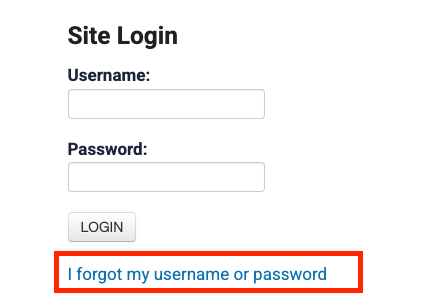
3. Enter your email address to receive an email with instructions for resetting your password. Check spam if you do not receive the email within a few minutes. If you need to update your email on file, call 717-854-8755 or email info@yorkbar.com.
4. Open your email and select Click This Link to Reset Your Login (see screenshot below):
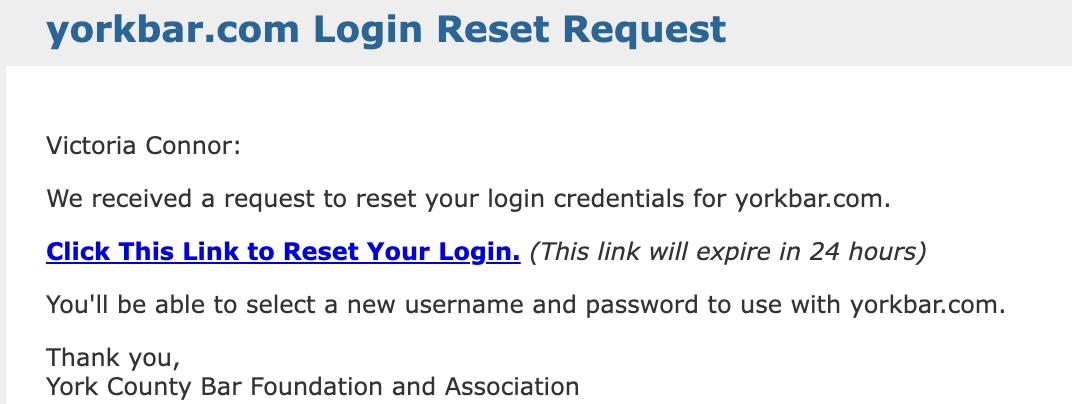
5. You’ll be directed to a page to select your account (if multiple accounts are found).
6. Update your new username and password (see screenshot below):
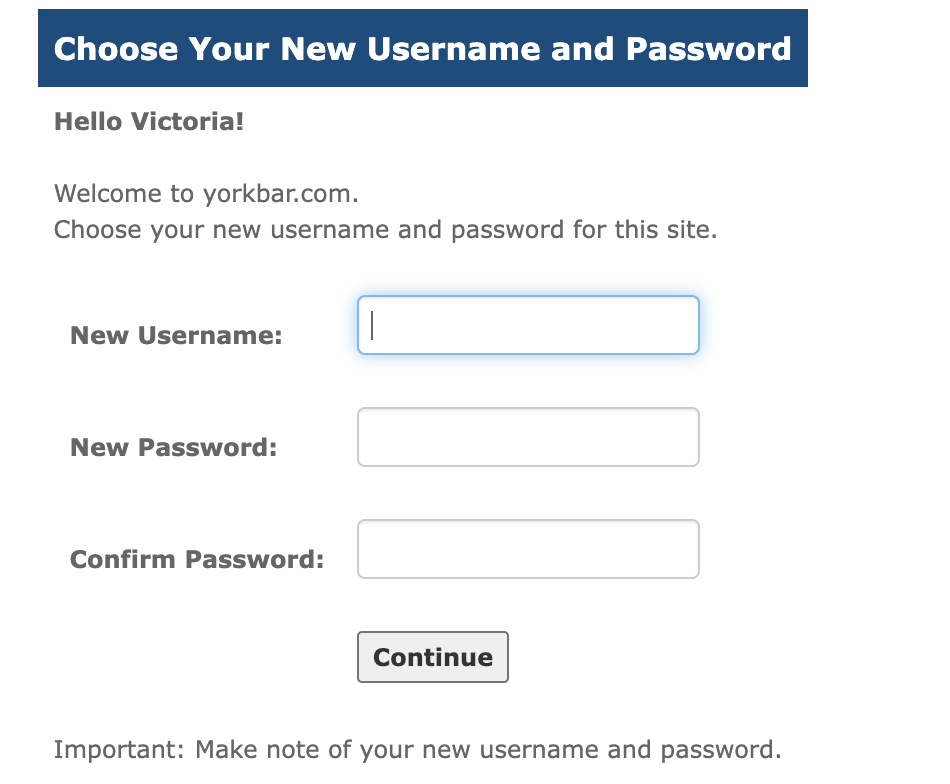
After logging in for the first time, if you need to know your login and password, click on I forgot my username or password and follow the steps. Call 717-854-8755 or email info@yorkbar.com. with any questions.
Q: How do I update my contact information?
A: When visiting the new YCBA website for the first time, members are encouraged to update or verify their contact information by setting up their new YCBA profile. See below for instructions on how to set up your new YCBA profile:
1. Log-in to www.yorkbar.com
2. Go to your MyYorkBar page on the top bar of the page, or go to this link - www.yorkbar.com/?pg=MyYorkBar.
3. Select Update My Profile to review and update your contact information, billing and/or mailing address and other information. Click Save Changes when complete.
4. Select Update My Photo to upload your headshot image. Click Choose File to select your headshot file from your computer and click Upload.